ControlCom Connect for iOS
Description
ControlCom Connect is now on the App Store. The iPhone app signs in to the same account as the web app and shows the same Organization: sites, alarms, dashboards, diagrams, Bob, rounds and reports, with alarm notifications that open straight to the event. Nothing is set up in the app itself; what you build on the web appears on the phone.
The Organization on one screen
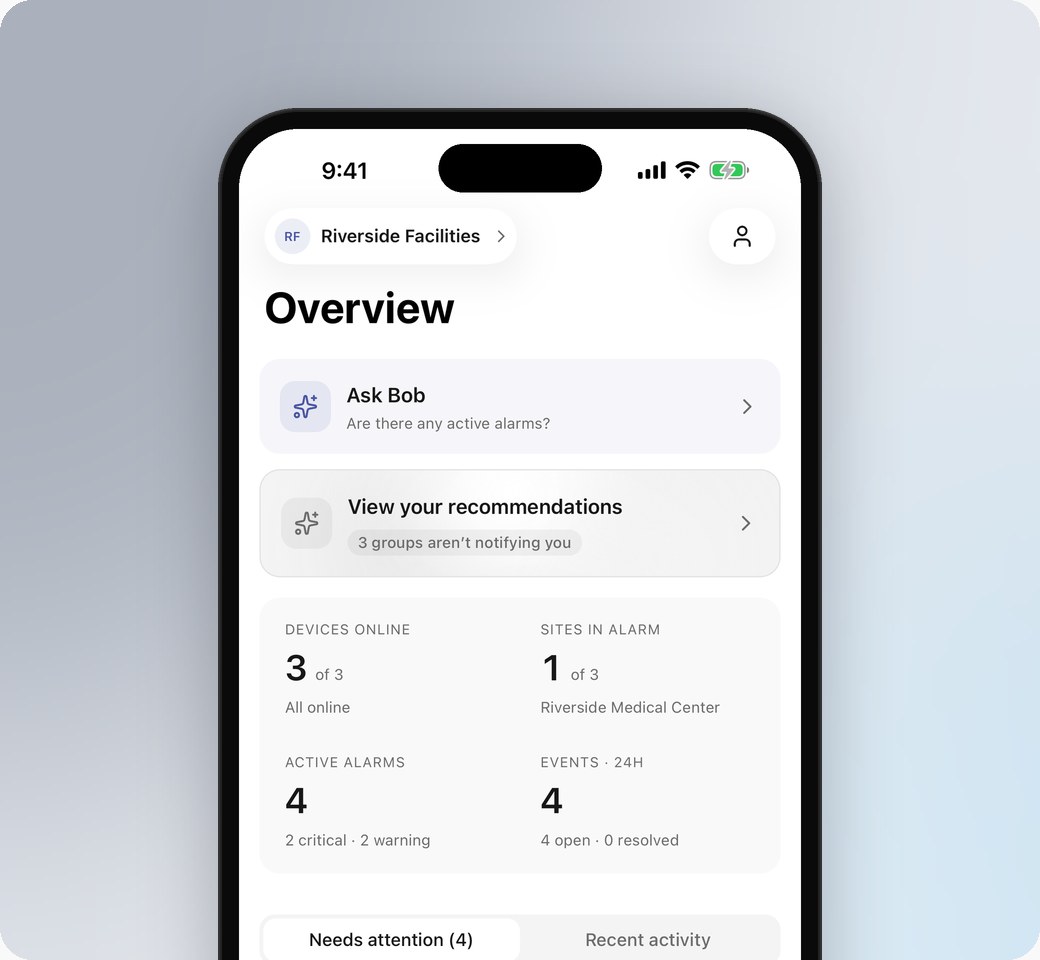
The Home tab is the Overview. Four tiles give the state of the Organization: Devices online, Sites in alarm, Active alarms by severity and Events in the last 24 hours. Needs attention lists the active alarms with their site and asset, and Recent activity lists what happened lately; tap a row to open it. When an alarm group is not notifying you, a recommendations card says so.
Alarms you can act on
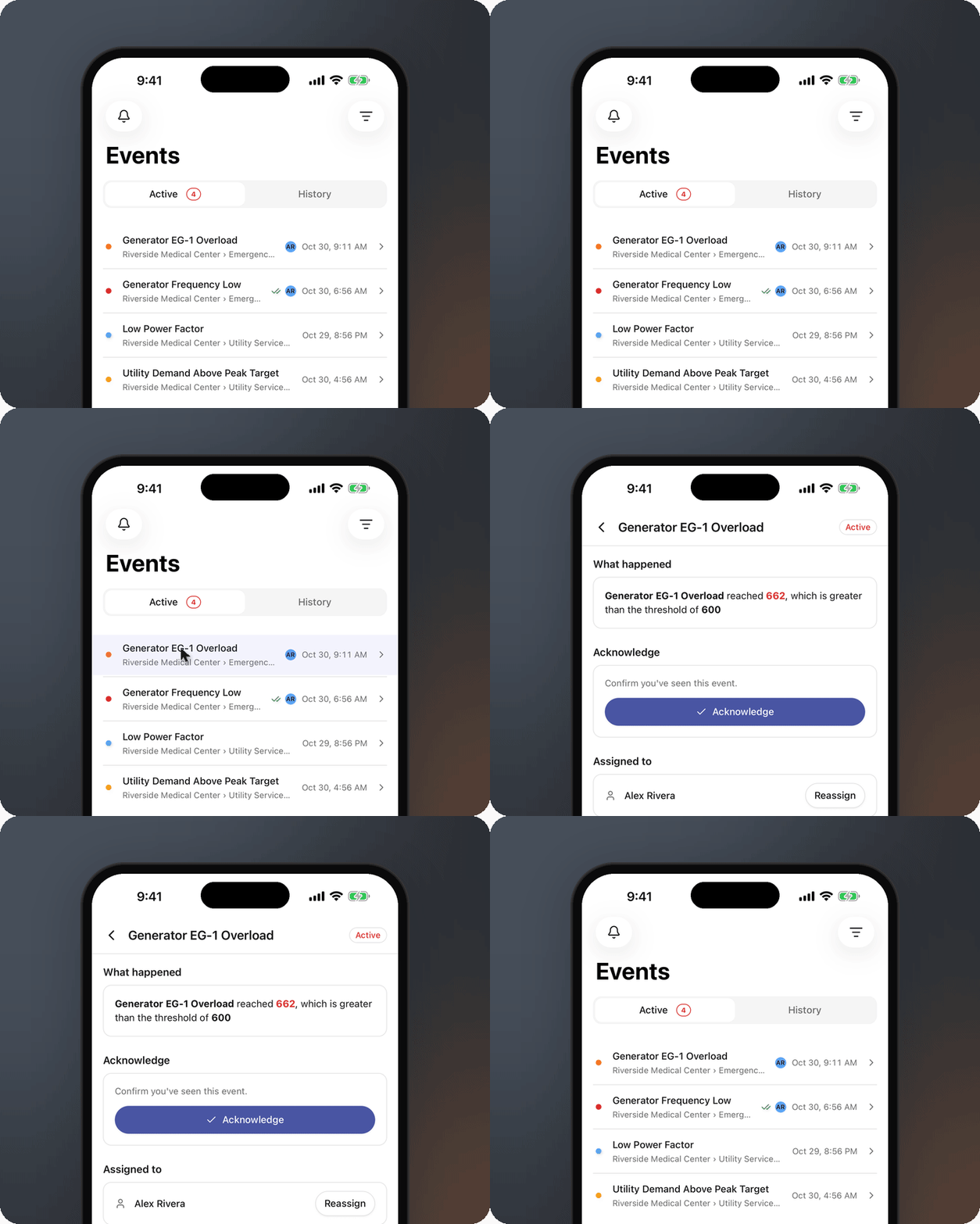
The Events tab lists every active alarm with its severity, site, asset, assignee and acknowledgement, with History for a date range and a filter for alarm group, site and dates. Open one and the page answers the first questions: What happened states the measured value and the threshold it crossed, Acknowledge confirms you have seen it, Reassign hands it to a colleague, who is notified, and Notes keeps what the operators found so the next person has context.
Allow notifications when the app asks and an alarm reaches your phone. Tapping the notification opens the event itself, ready to acknowledge or assign. Power quality and other reported events sit under Recent events on the same tab.
Sites on a map
The Sites tab maps your Locations. A site in alarm is marked with a red warning triangle, a healthy one with a green pin. The list button opens the site list, searchable by name or city, and the bell opens the Locations with active alarms. From a site you drill into its assets, and from an asset into its variables with the latest value, relationships and history.
Dashboards on the phone
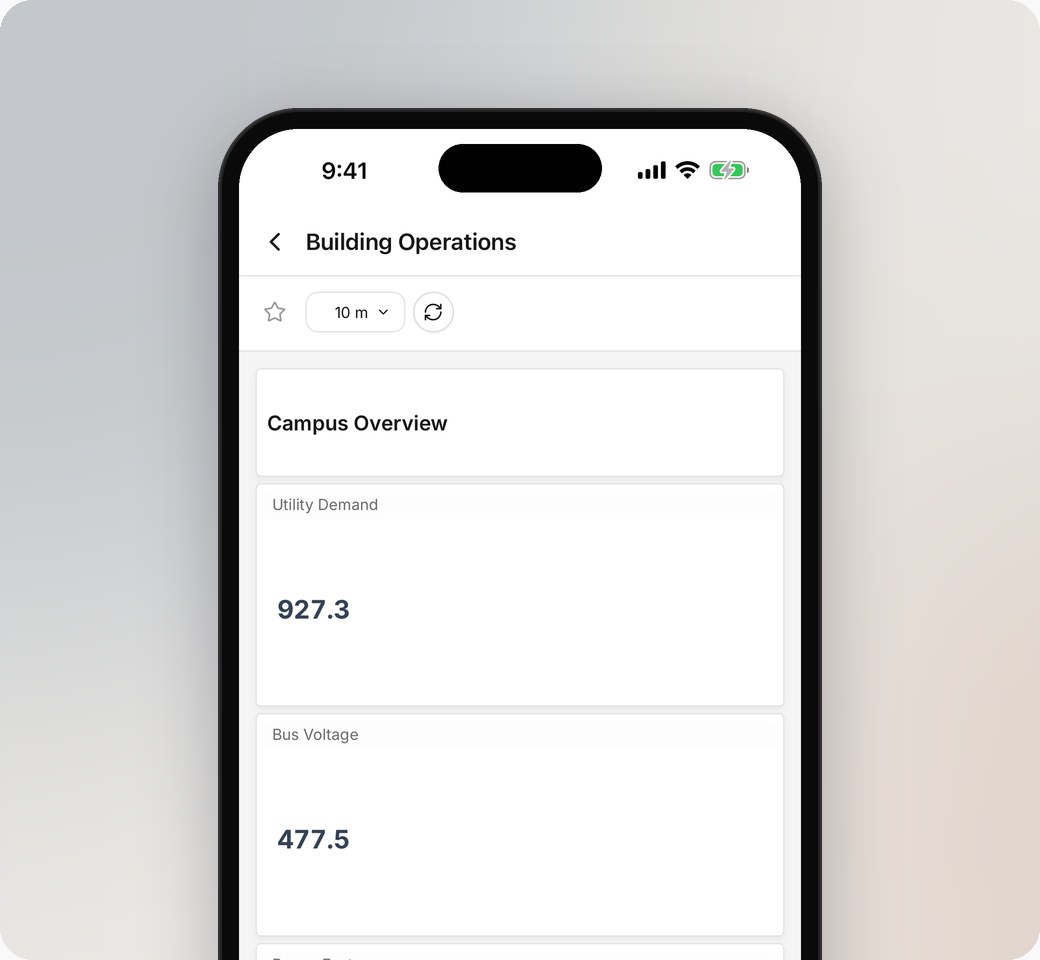
The Views tab lists the Organization's Dashboards and Diagrams, with search and filters on each list. They are the ones built in the web app; a dashboard's widgets stack in one column so it reads top to bottom.
Diagrams, full screen
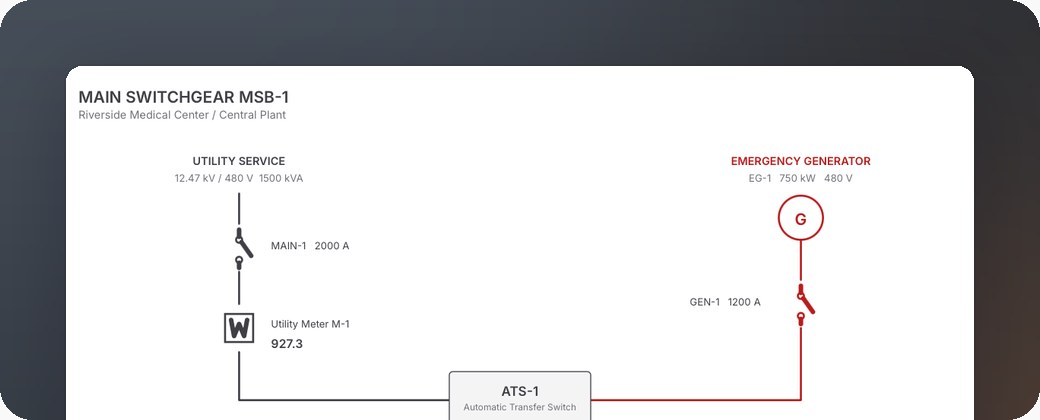
A diagram opens full screen, in portrait or landscape, with its live values, and the X in the corner closes it.
Ask Bob
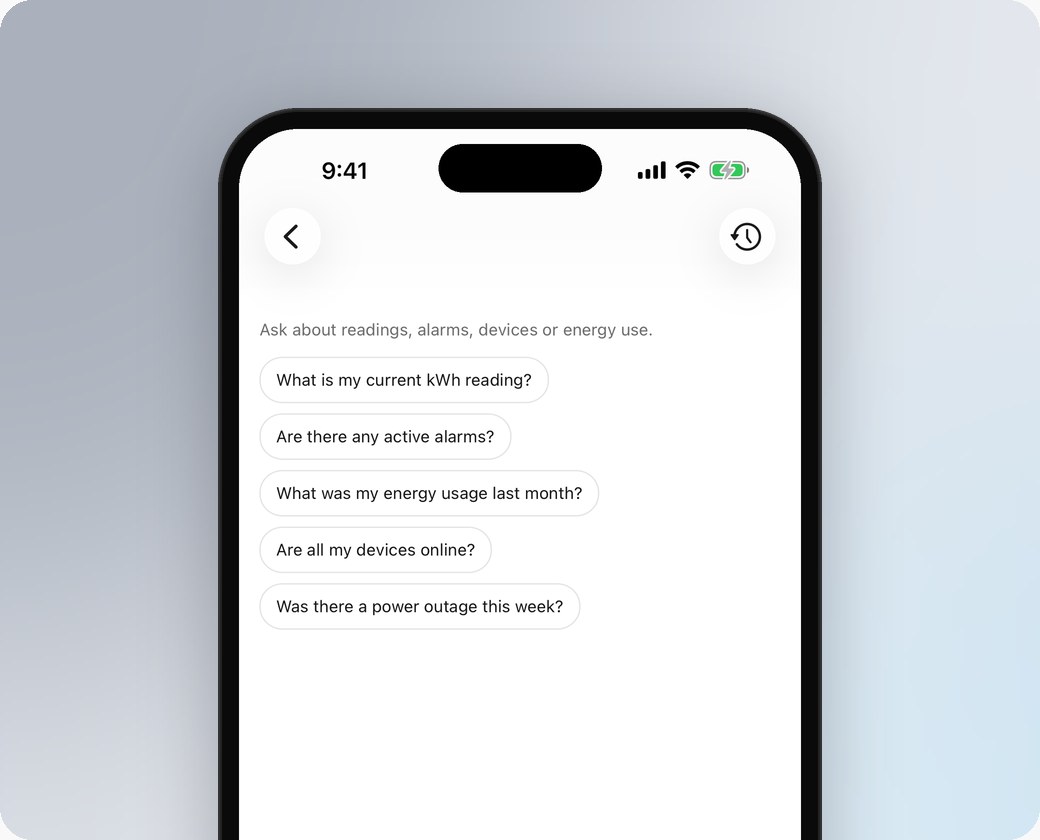
Ask Bob at the top of the Overview opens the AI Assistant. Pick a suggested question or type your own; the microphone button dictates it instead. Earlier conversations are one tap away under the history button.
Also in this update
- More → Rounds opens the log sheets created in the web app, to record readings, add notes and attach photos from the camera or photo library
- More → Reports holds Power Quality Events, plus Generator Compliance and Generator Event Reports when your role has the matching permission
- Tap the Organization name at the top of the Overview to switch Organizations; Appearance in the settings picks Automatic, Light or Dark
Install ControlCom Connect from the App Store and sign in with the email and password you use on the web. The guide is in the documentation.