Tools Updates
15 updates in this category.
September 28, 2026
Operator Rounds & Generator
This update covers everything released in ControlCom Connect since August 4. The largest additions are Operator Rounds for recording manual readings, a Generator Event Report for documenting outages and FEMA claims, and a weekly digest of...
Read moreJuly 22, 2026
Gateway OS & Secure Login
Gateway OS & Edge Management ControlCom Connect now includes a significantly upgraded Gateway OS interface, providing plant managers and integrators with more direct control over edge hardware for remote monitoring. This update simplifies...
Read moreJuly 4, 2026
AI Assistant & Alarm Replay
This update to ControlCom Connect introduces smarter ways to interact with your industrial data and simulate system behavior. From AI-driven assistance to advanced alarm simulation, these tools are built to help plant managers and...
Read moreJune 30, 2026
Diagrams light & dark mode
Hierarchical HMI and Diagrams Building complex visual interfaces for water/wastewater or manufacturing sites is faster with new reusable structures and logic tools in the HMI editor. Nested Diagram Instances: Create reusable diagram...
Read moreJune 15, 2026
Global Search & New Reports
Finding the data you need and managing large-scale equipment fleets is now much faster in ControlCom Connect. This update introduces platform-wide search, deeper asset reporting, and expanded hardware support for industrial monitoring...
Read moreJune 4, 2026
Enhanced Alarm Management
This update to ControlCom Connect introduces advanced workflows for managing industrial alerts and more ways to share your data. Plant managers and integrators can now coordinate faster response times through dedicated alarm assignments...
Read moreMay 14, 2026
Device Templates for Faster Fleet Management
Managing a large fleet of field sensors just got simpler. We have overhauled how device data is organized within ControlCom Connect, making it easier for integrators to scale their monitoring systems while maintaining data integrity across...
Read moreMay 6, 2026
Device Diagnostics and Security Enhancements
Managing your industrial hardware and facility data is now more transparent. This update to ControlCom Connect brings better diagnostic tools for field devices, enhanced security for large teams, and smarter ways to anticipate system...
Read moreApril 23, 2026
Expanded API and Improved Diagram Controls
ControlCom Connect continues to evolve as a flexible hub for industrial monitoring and analytics. This latest update focuses on providing integrators with more powerful tools to customize the platform and gives operators more granular...
Read moreApril 16, 2026
Find and Replace + Radial Cards in the Diagram Editor
Building complex HMI screens for your industrial systems just got much faster. The latest update to ControlCom Connect focuses on reducing the manual work required to build and maintain detailed system diagrams, especially when managing...
Read moreApril 15, 2026
Asset Hierarchies and Relationships for Facilities
Managing complex industrial environments requires more than just a list of devices. ControlCom Connect now provides deeper organizational tools to help you map your digital twin to your physical facility more accurately. Organize with...
Read moreApril 12, 2026
Interactive HMI Screens and Asset Management
This update for ControlCom Connect introduces interactive controls to your system diagrams and provides better tools for managing your facility hierarchy. Whether you are an integrator setting up a new site or a plant manager cleaning up...
Read moreApril 11, 2026
Data Explorer: Faster Analysis and Sharing
The ControlCom Connect Data Explorer just got a major upgrade, making it faster to analyze your industrial data and easier to share insights with your team. Here's what's new: Faster, Smoother Experience We've significantly improved the...
Read moreNovember 17, 2025
Audit Trail for Pro & Enterprise
Track every change to your organization's resources with our new audit trail feature—perfect for security compliance, internal audits, and maintaining visibility across your team's actions.
Read moreNovember 11, 2025
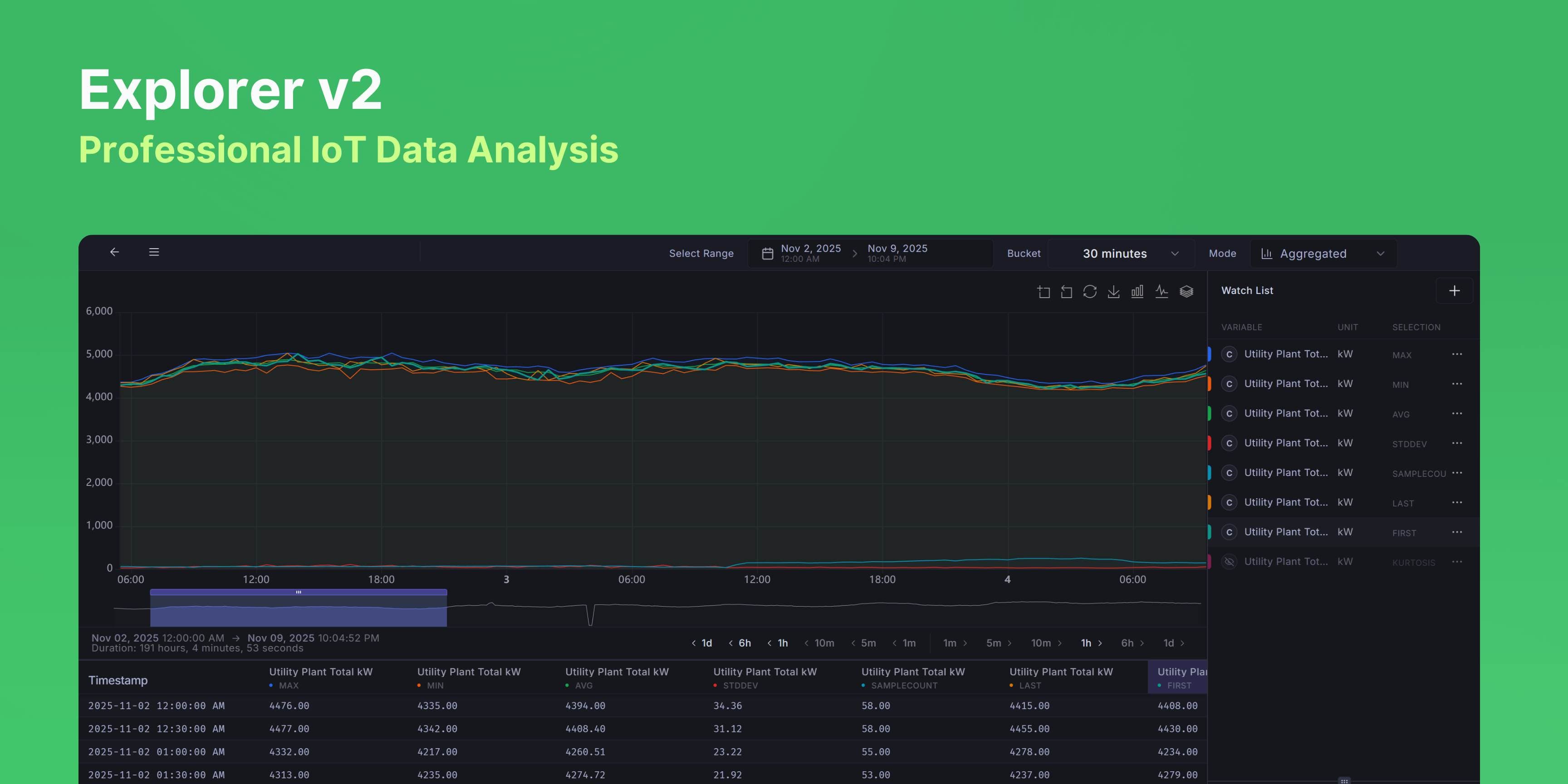
Explorer v2, Professional IoT Time-Series Data Analysis
Overview Explorer v2 is a professional-grade time-series data visualization and analysis tool designed for IoT device monitoring and operations. It provides real-time and historical data exploration with advanced statistical analysis...